
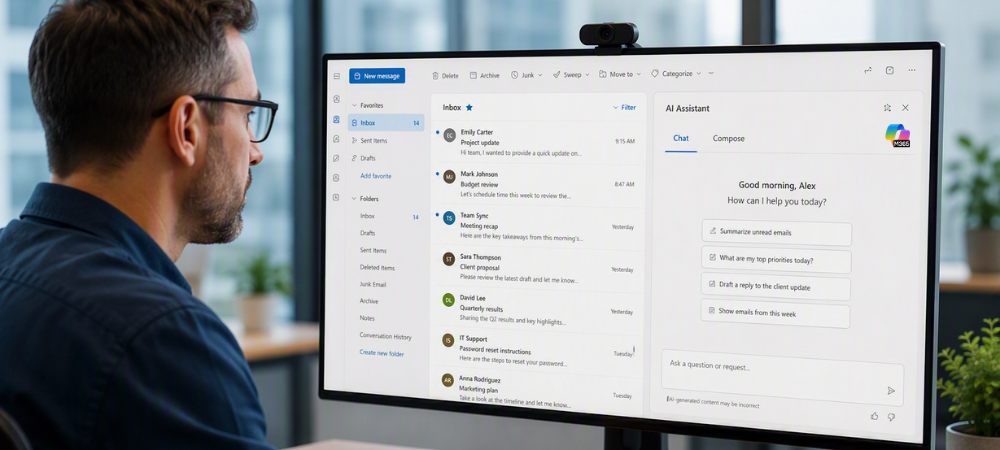
Using the Copilot Pane Like a Personal Assistant
Imagine having a reliable assistant available whenever you open Microsoft 365. Someone who can help draft emails, summarize meetings, organize tasks, find information, and even help you brainstorm ideas. That’s exactly how many professionals are starting to use the Microsoft Copilot pane.
While some people think of Copilot as just another AI chatbot, the real value comes when you treat it like a digital assistant integrated into the tools you already use every day. Whether you’re working in Outlook, Word, Excel, Teams, or the Copilot app itself, learning how to work alongside Copilot can help you reduce busy work and focus on higher-value tasks.
What Is the Copilot Pane?
The Copilot pane is the side panel or chat experience available within Microsoft 365 applications. Instead of switching between multiple apps or searching through documents manually, you can ask Copilot questions or assign tasks directly from the work you’re already doing.
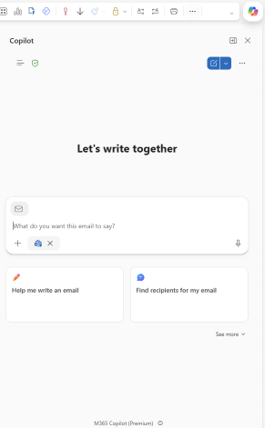
Think of it as having an assistant sitting next to you that can:
- Draft content
- Summarize information
- Answer questions
- Organize notes
- Locate files
- Analyze data
- Suggest next steps
Unlike standalone AI tools, Microsoft Copilot can work within your Microsoft 365 environment and use information you already have permission to access.
Start Treating Copilot Like an Employee
One of the biggest mistakes users make is treating Copilot like a search engine.
Instead, try treating it like a new team member.
Rather than typing:
“Meeting notes”
Try:
“Review my meeting notes and provide the top five action items with owners and due dates.”
The more context you provide, the more useful the response becomes.
Just as you would give clear instructions to an assistant, provide Copilot with:
- A goal
- Relevant context
- Desired format
- Audience
- Deadline (if applicable)
The result is often more accurate and actionable.
How Copilot Can Help Throughout Your Day
Morning Planning
Start your day by having Copilot organize your workload.
Examples:
- “Summarize my priorities for today.”
- “What meetings do I have this afternoon?”
- “Create a task list from my recent emails.”
Instead of manually reviewing dozens of messages and calendar appointments, Copilot can help you identify what needs attention first.
Managing Email Faster
Email is one of the biggest productivity drains for many professionals.
Using the Copilot pane in Outlook, you can:
- Summarize long email threads
- Draft replies
- Rewrite messages for tone and clarity
- Pull out action items
- Create follow-up messages
If you’ve ever spent ten minutes figuring out how to write a response, Copilot can often provide a solid draft in seconds.
Meeting Assistance
Meetings generate valuable information, but many employees struggle to keep track of notes and action items afterward.
Copilot can help by:
- Summarizing discussions
- Highlighting decisions
- Generating action items
- Recapping missed meetings
- Creating follow-up emails
Instead of spending additional time organizing notes, you can focus on execution.
Document Creation
Need to create a report, proposal, newsletter, policy, or presentation?
The Copilot pane can help with:
- First drafts
- Outlines
- Rewrites
- Executive summaries
- Content expansion
Many users find that getting started is the hardest part. Copilot helps eliminate blank-page syndrome by providing a starting point that can be edited and refined.
Research and Information Gathering
Rather than searching through folders, emails, or documents individually, ask Copilot questions like:
- “Summarize the latest project updates.”
- “What decisions were made about this initiative?”
- “Find documents related to our cybersecurity training.”
This can significantly reduce time spent searching for information.
Best Practices for Better Results
Be Specific
Vague requests lead to vague answers.
Instead of:
“Help with this document.”
Try:
“Rewrite this document for a business audience and reduce the length by 25%.”
Give Context
Provide background information whenever possible.
For example:
“This email is being sent to clients about scheduled maintenance. Keep the tone professional and friendly.”
Review Everything
Copilot is incredibly helpful, but it isn’t perfect.
Always review:
- Facts
- Dates
- Numbers
- Customer communications
- Technical information
Think of Copilot as an assistant helping prepare work, not replacing your expertise.
Use Follow-Up Questions
Just like a conversation with a coworker, your first request doesn’t have to be perfect.
Ask follow-up questions such as:
- “Make it shorter.”
- “Add more detail.”
- “Use bullet points.”
- “Make it more professional.”
The conversation often produces the best results.
Why Businesses Are Embracing Copilot
Organizations are increasingly adopting AI tools because they help reduce repetitive administrative work and improve productivity.
According to Microsoft, AI-powered assistants help professionals spend less time on routine tasks and more time on strategic work, collaboration, and customer engagement. Microsoft notes that Copilot works directly within familiar applications such as Word, Excel, Outlook, and Teams, helping users streamline their workflows while staying in control of the final output.
For many businesses, the goal isn’t to replace employees. It’s to help employees work smarter and accomplish more with the tools they already use.
The Assistant You Already Have
The best way to think about the Copilot pane is simple:
It’s a personal assistant built into Microsoft 365.
When used effectively, Copilot can help you stay organized, communicate more efficiently, find information faster, and spend less time on repetitive tasks. The more you interact with it like a real assistant, the more value you’ll get from it.
How BEI Can Help
Microsoft Copilot is powerful, but many organizations struggle with implementation, licensing, training, governance, and adoption.
At BEI, we help businesses get the most out of Microsoft 365 and Copilot through strategic guidance, user training, security best practices, and ongoing support. Whether you’re just starting to explore AI or looking to accelerate adoption across your organization, our team can help you make Copilot a practical productivity tool for your workforce.
Ready to get more from Microsoft 365 Copilot? Contact BEI today to learn how we can help your team work smarter, faster, and more efficiently with AI-powered productivity tools.

